Textures, packs and placeholders
Textures
The editor never ships a Mojang texture. It reads them from three places.
- C: icons from the Typewriter jar. The item icons of the slots come from the web panel assets of Typewriter itself. If your Typewriter build has none, the editor shows no icons.
- B: your client jar. Click Minecraft textures and pick the
.jarof your Minecraft client. The file is read in your browser and stays there: nothing is uploaded. The editor then draws the vanilla container backgrounds, the font and the flat item icons. Where to find the jar and how long the import lasts: Import your client jar. - Your resource pack. When your server pack replaces a container texture (
gui/container/*), the editor paints it instead of the Mojang one.
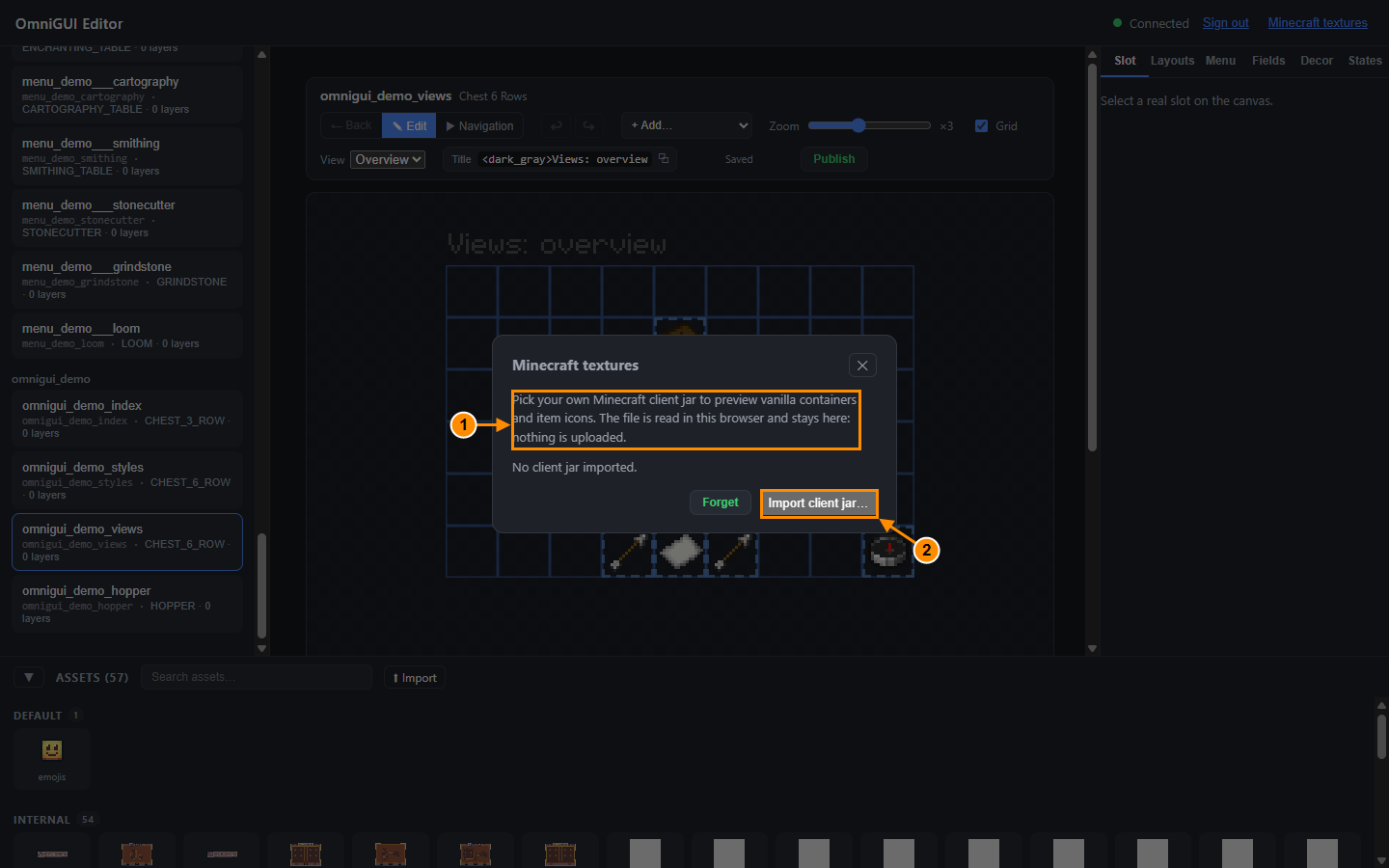
- The explanation: the file is read in the browser and nothing is uploaded.
- Import client jar...
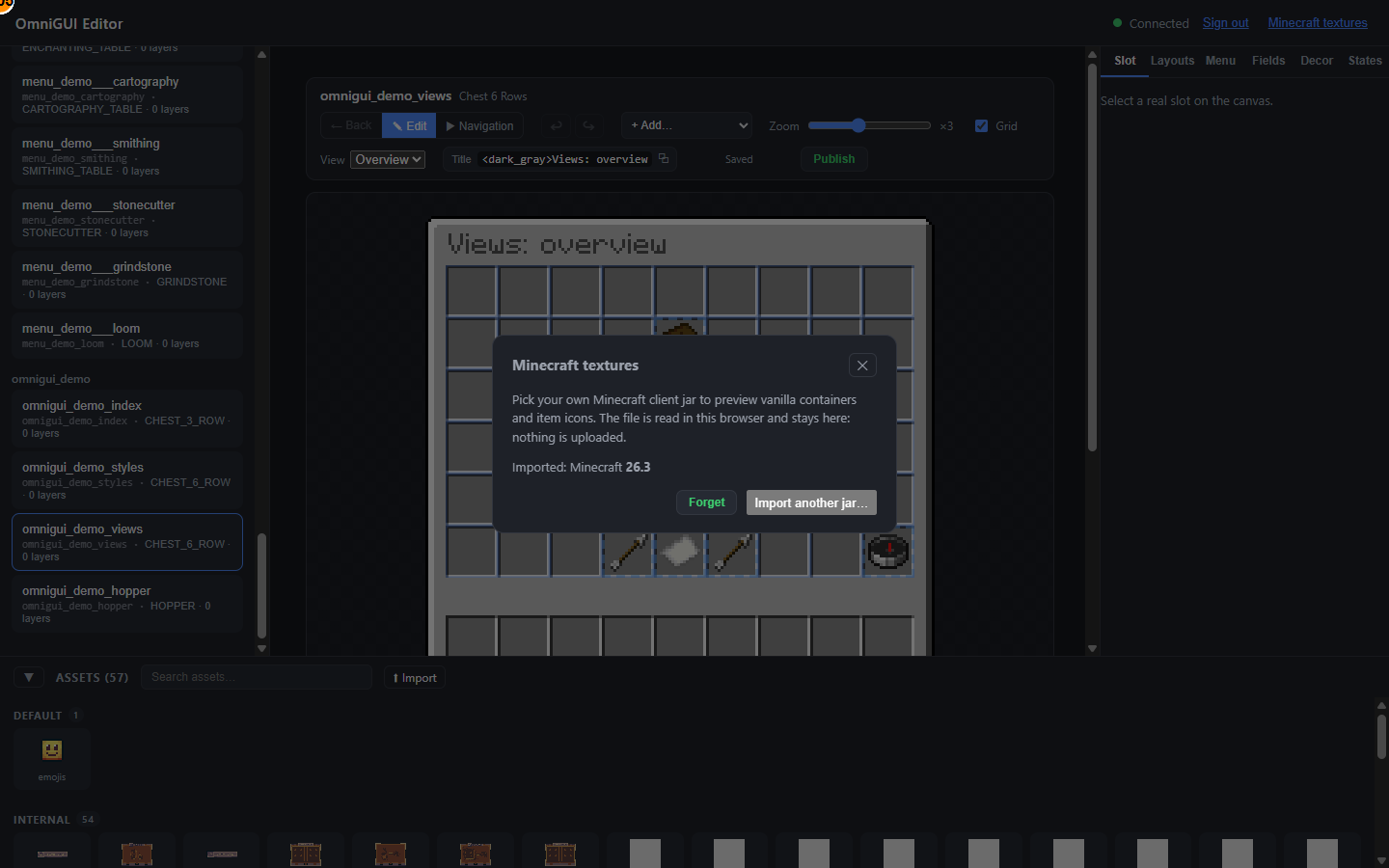
- "Imported: Minecraft 26.3" confirms the version. Forget removes it.
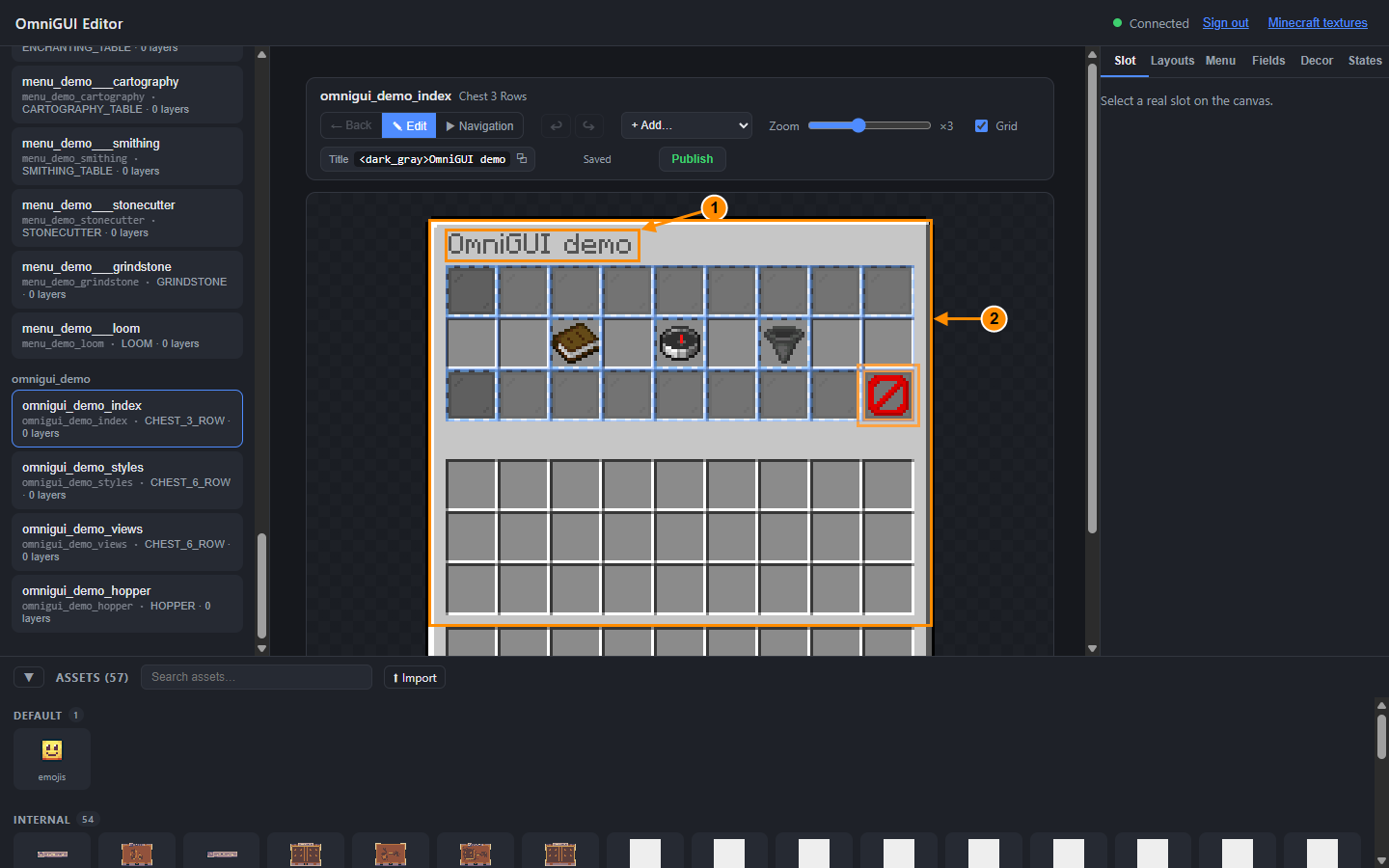
- Title drawn in the bitmap font.
- Container background taken from the client jar.
Packs: CraftEngine, Nexo, ItemsAdder
OmniGUI builds its own resource pack (fonts for titles, nine-patch bitmaps, viewport sheets) at every load and reload. Which plugin carries it is chosen automatically: CraftEngine (26.9.1 or later), Nexo (1.28 or later), ItemsAdder (4.0.17 or later), else a standalone pack. Force a choice with the packProvider field of the GUI configuration; the related fields (such as packRebuildAutomatically) are on the same entry.
- With a pack plugin, OmniGUI hosts and sends nothing: the plugin's own pack carries the GUI content. When the content changes, OmniGUI asks the plugin to rebuild (
craftengine reload pack,nexo reload pack,iazip), unless you turnpackRebuildAutomaticallyoff. A rebuild sends the pack again to every online player. - The editor shows the 2D icon of your CraftEngine, Nexo and ItemsAdder items in the slot item picker.
- ItemsAdder: OmniGUI drops its files in
contents/omnigui/resourcepackand only touches the files it listed itself. Run/iazipafter a change, then reload the editor page to see the new assets. - Nexo: supported through its API, but not tested on our bench. Report any problem you meet.
Your own images
- In the asset browser, click Import and choose a PNG.
- The name uses
a-z,0-9and_(64 characters at most); the image is 1024 x 1024 pixels at most and 5 MiB at most. A name already used is refused. - The new asset appears under STANDALONE / CUSTOM, and every open editor sees it. Use it in an Image layer or a tilemap.
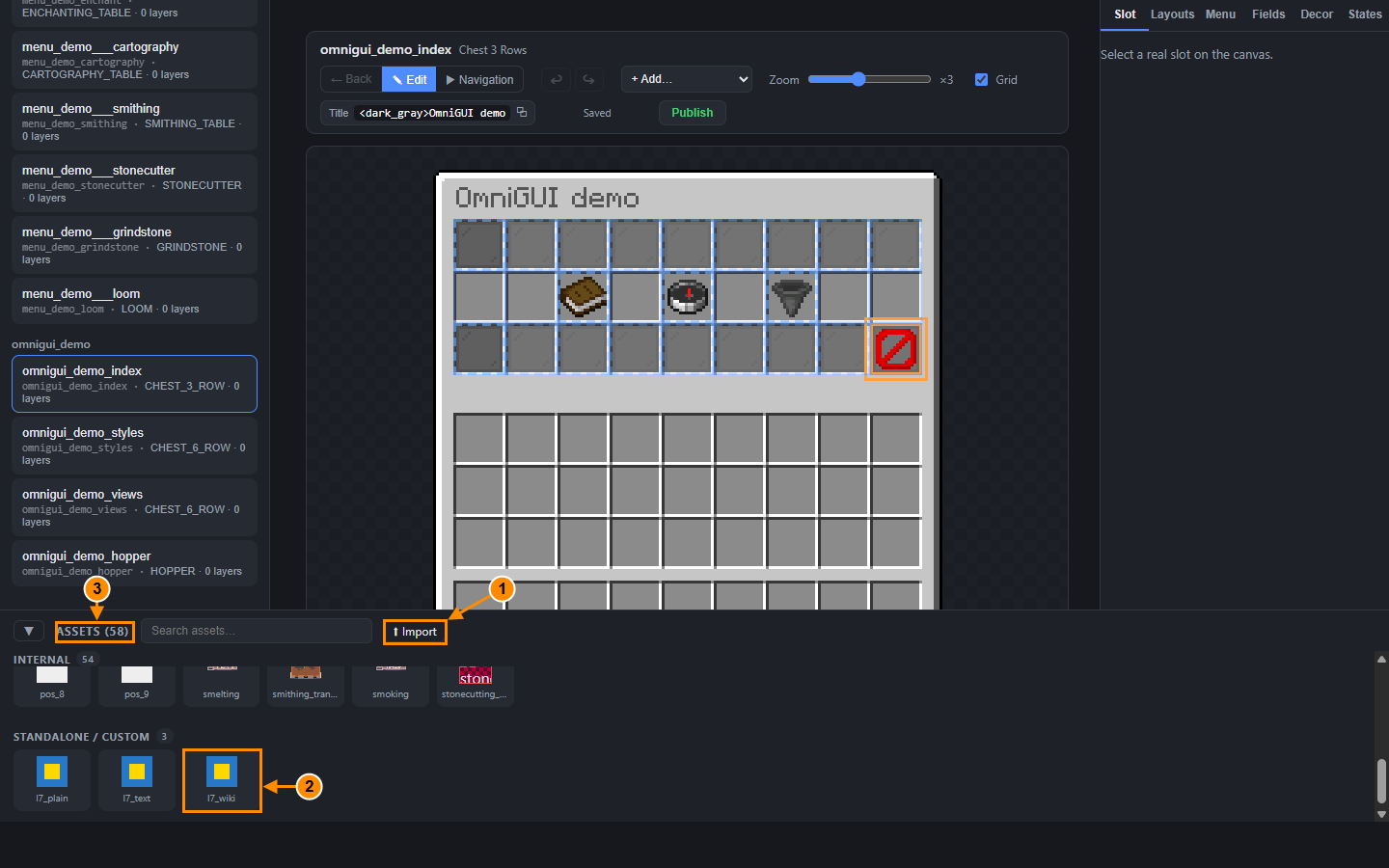
- Import button.
- The new asset (
l7_wiki). - Asset counter.
The Vanilla theme
The standalone pack starts from a Vanilla theme drawn by code: button, hover, two paddings, panel background, scroll arrows, slot highlight and tilemap grid. A texture already in the assets folder is never overwritten, and each one can be replaced from the editor.
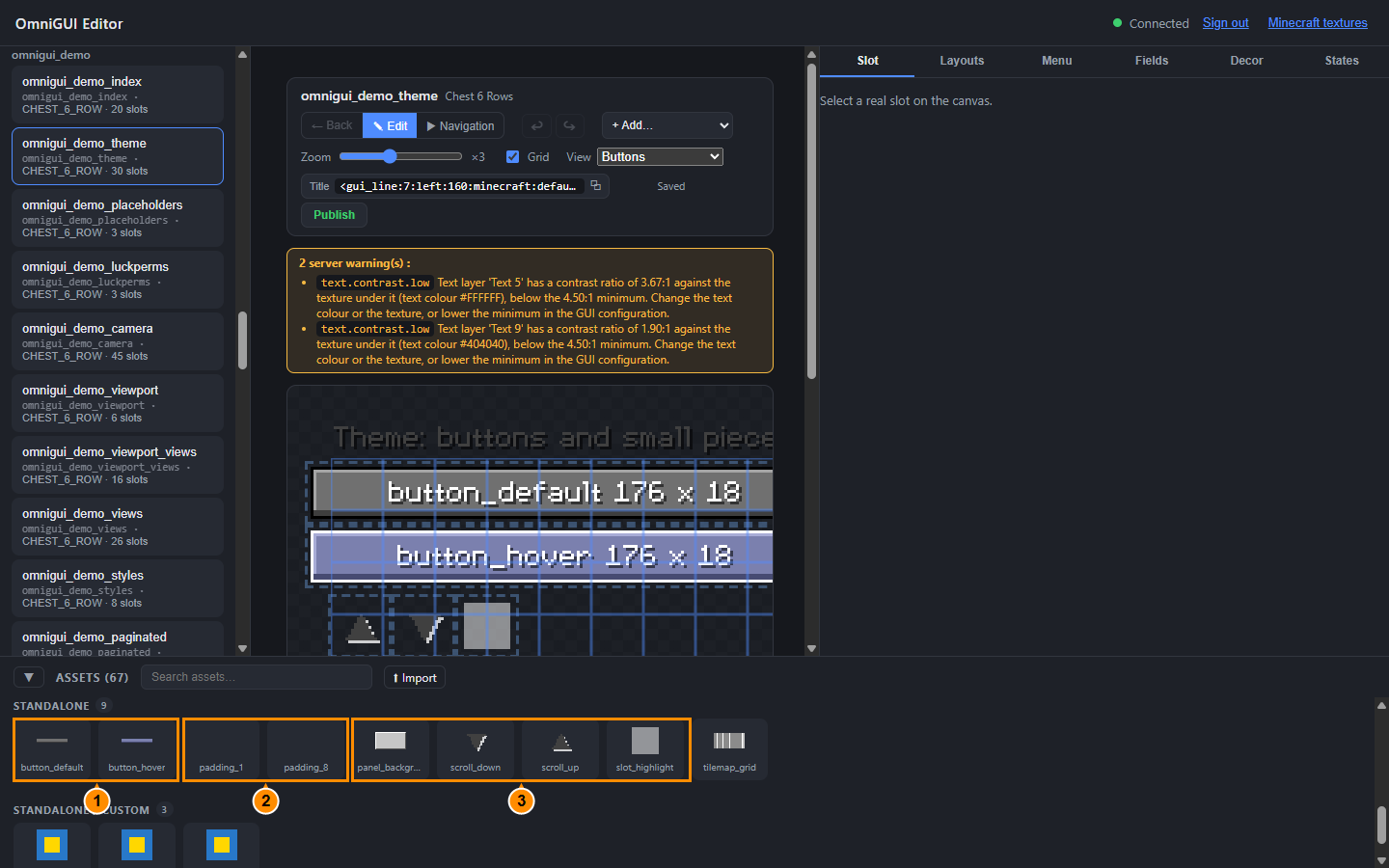
button_defaultandbutton_hover.padding_1andpadding_8.panel_background,scroll_up,scroll_down,slot_highlightandtilemap_grid.
Placeholders
With PlaceholderAPI installed, %placeholder% works in texts. Set Auto refresh in the Menu tab so that a changing value (a clock, a balance) is redrawn.
- Texts (title, item name and lore, book page, dialog buttons, leaderboard rows): the tags you write (
<red>,<shift:-300>) are interpreted, but the value of a placeholder is inserted as literal text and is never read as MiniMessage. A prefix<shift:-300>shows as typed.&codes,&#rrggbband§codes in a value are still honoured. - Button commands run by the console: each
%placeholder%is filled one at a time, and line breaks and control characters are removed from the value. If a value contains a space or one of@ ; " ' \ { } [ ] § &, the command is not run (the other actions of the click still run) and the console shows one warning that names the placeholder. A plain vanilla name (A-Z a-z 0-9 _) always passes.gui:commands are not sent to the console and are not checked. - Input dialogs:
{input}follows the same rule. A typed text containing a space or one of those characters makes the command not run. The console warning names{input}, never the typed text, and the player receives the messagecontent.omnigui.input.refused(editable insnippets.yml).
A command like /give %player_name% diamond is safe with a vanilla name, but a player with a prefix or a nickname in the value is refused. Do not use a placeholder whose value can hold spaces in a console command.
Using CraftEngine
We recommend setting this in CraftEngine's config.yml, then restarting:
network:
  intercept-packets:
    container: false
    item: false
With these set to true, CraftEngine reads <shift> and <image> tags inside every container title (container) and every item name and lore (item) after OmniGUI has built them, including text that came from a placeholder. A player whose name, prefix or guild name contains <shift:-300> could then shift the whole title of a menu, or the name of an item in it. OmniGUI inserts placeholder values as plain text, but it cannot stop a later rewrite of the packet.
OmniGUI does not need the interception: its own glyphs and shifts are already in the pack, and CraftEngine items keep their model and name with item: false (checked with CraftEngine 26.9). The trade-off is that CraftEngine tags written in the titles and item texts of other plugins are no longer interpreted.