Views, layouts, states and data
This page shows where each of these features lives in the editor. The concepts themselves are explained in Views, tabs and inheritance, Layouts, frames and slots and Interactions and navigation.
Views and history
A view is one screen of a menu: the shell (tab strip, footer) stays, the content changes.
- Write the views on the entry (in the Fields tab or the Typewriter panel):
id,name, optionalparentId,criteria,viewPermission,activeStyle. - Give a tab button the prefix
view:and the view id as button type (see Build a menu). - The toolbar now shows a View selector. It chooses which screen the canvas previews, since a menu with a dozen views would otherwise only ever show its default one. Template views are suffixed "(template)".
- Set
pushHistoryOnViewSwitchso that Back (gui:back) returns to the previous view after a tab change. - In Navigation mode, click the tabs, then Back: the number on the button shows how many screens are stacked.
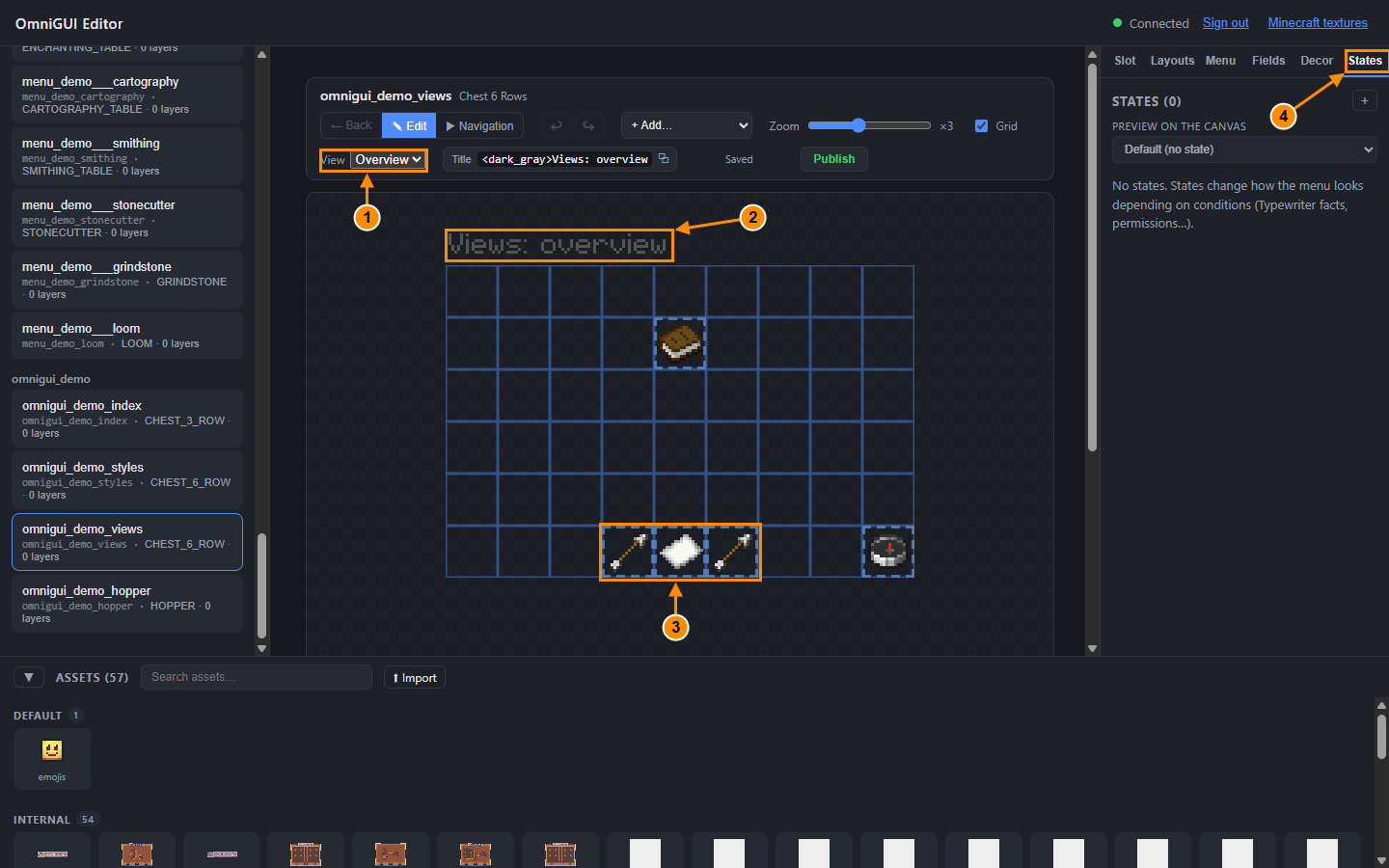
- View selector.
- The title and the content of the selected view.
- The tab buttons that switch views.
- The States tab.
Layouts
The Layouts tab lists the layouts of the menu. A layout places slots; the main layout is the one used by default.
- Type a layout id and click Create the layout.
- Select it, then + Add a slot, or use a wizard for lists: Create a scrolling list or Create a paginated list.
- Set its properties: Justification, Alignment, Line wrap, Virtual height (scrolling), Items per page (paginated), Inner layout, Virtual width. Frames are the named areas a view fills.
- Set as main layout makes it the default. Page preview and Scroll preview show the result on the canvas.
A layout inherited from a template (baseMenuId) appears greyed. The same id overrides it.
States
A state changes how the menu looks when its conditions hold: show or hide slots, force a page, override a slot or layer (visible or hidden, text, colour, amount, lore).
- Open the States tab, click Add a state and type its name (for example
premium). - Set its Priority, and Inherits from if it builds on another state.
- Add conditions with Add a fact condition: a fact key (for example
player.level) and a test. Several conditions must all be true. Composite conditions (and, or, not) written in Typewriter are kept as they are. - Under Dynamic layout list the Visible slots and Hidden slots by index, or force a Page (0 = the first).
- Under Visual and slot overrides, click + selection to override the selected slot or layer.
- Use Preview on the canvas to see each state without leaving the editor, and the test panel in Navigation mode to simulate facts.
A condition that cannot be decided
A condition has three outcomes: true, false, or undecidable (an unknown fact, a permission check without a key). An undecidable condition is never true for lack of information: not does not invert it, and with a false child is false, or with a true child is true, and otherwise the tree answers false. The console reports once per menu what made a condition undecidable. When no state matches, the menu keeps its default look.
A button can also move the menu to a state with State transition after click (see Build a menu).
Data: fact tiers, storage and leaderboard
The demo pack holds a working example of each.
Fact tiers
omnigui_demo_fact_tiers: buttons raise the fact omnigui_demo_level, tier slots appear or hide according to slot criteria, and a state (_gui_states) takes over at level 20. The fact is a permanent_fact from BasicExtension; without BasicExtension it is skipped and the command says so.
Per-player storage
omnigui_demo_storage: a personal chest backed by the gui_storage entry omnigui_demo_chest. Each player has their own content. See GUI Storage.
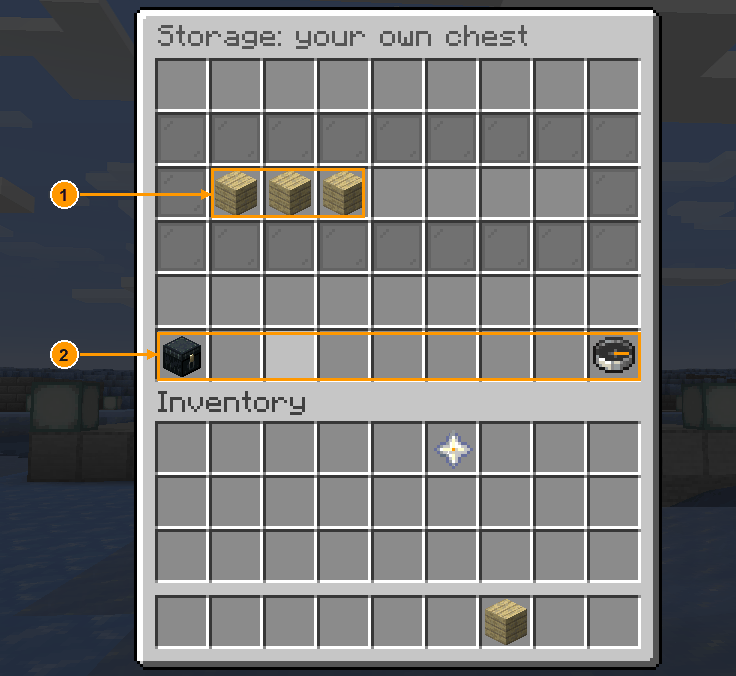
- Items dropped in the chest.
- A row of buttons of the menu.
Leaderboard
omnigui_demo_leaderboard: the ranking of the demo level through the gui_leaderboard entry omnigui_demo_board. See GUI Leaderboard.
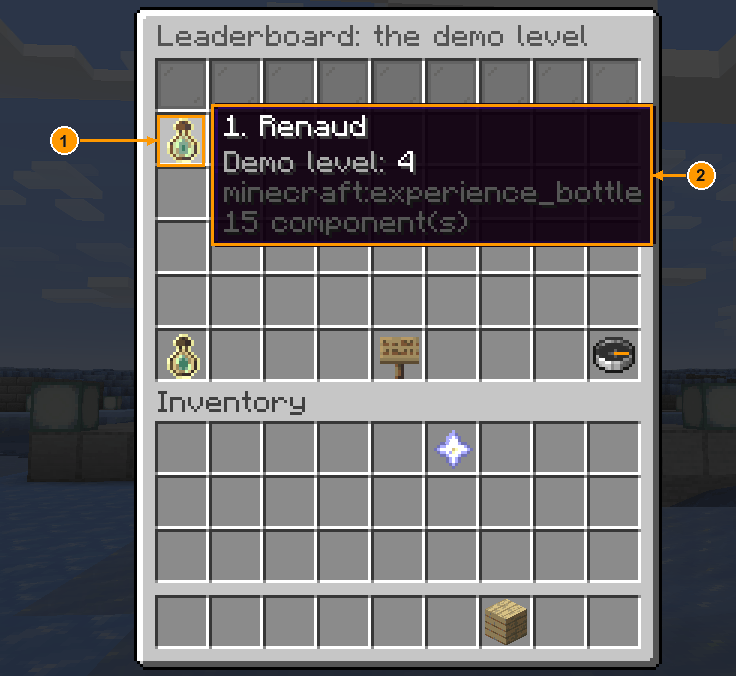
- A ranking row.
- The list of rows.